Search
Manage views
View and manage a list of your custom search views. You can choose which view to apply, select a new default view, or open a view to edit it.
Manage views
- Click the Viewing menu in the upper-right corner of the page and select Manage views and collections.
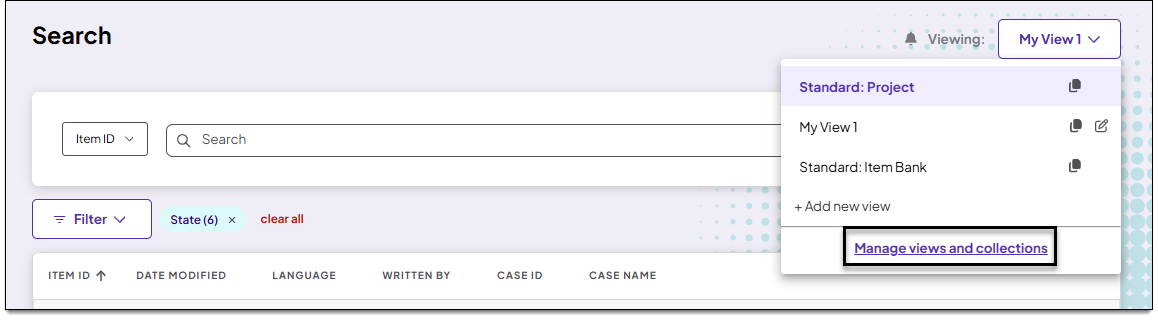
- On the Manage views and collections page, you can apply a view, edit a view, delete a view, set a new default view, or add a new view.
Apply a view
- On the Views tab, find the desired view in the list.
- Click Apply at the far-right end of the row (or for custom a view, click the
 for that view and select Apply).
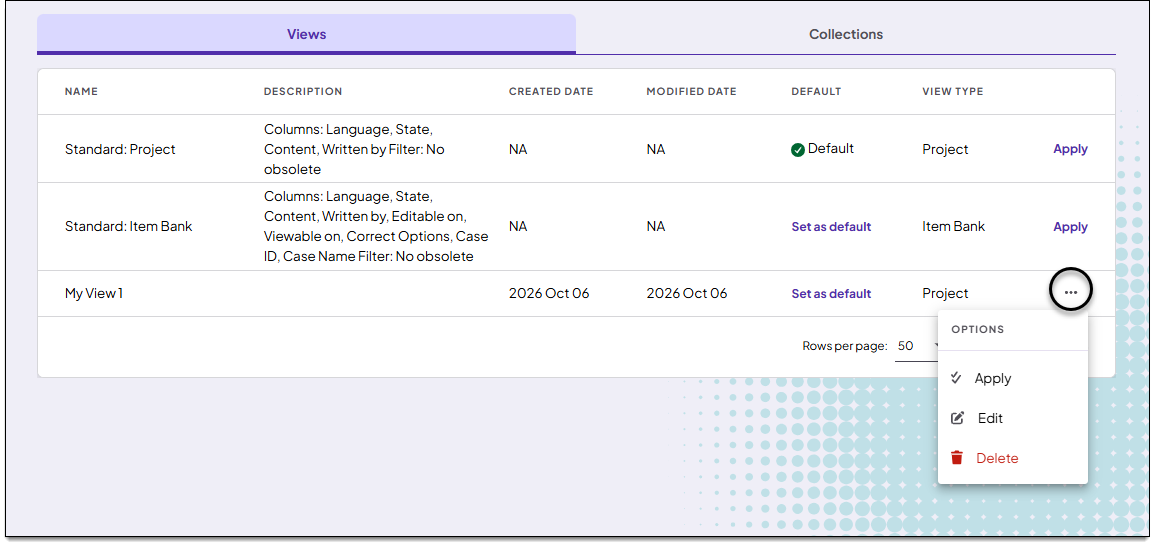
- The Search page will reload with the selected view applied.
Change the default view
- Find the desired view in the Manage all views list.
- In the Default column for that view, select Set as default.
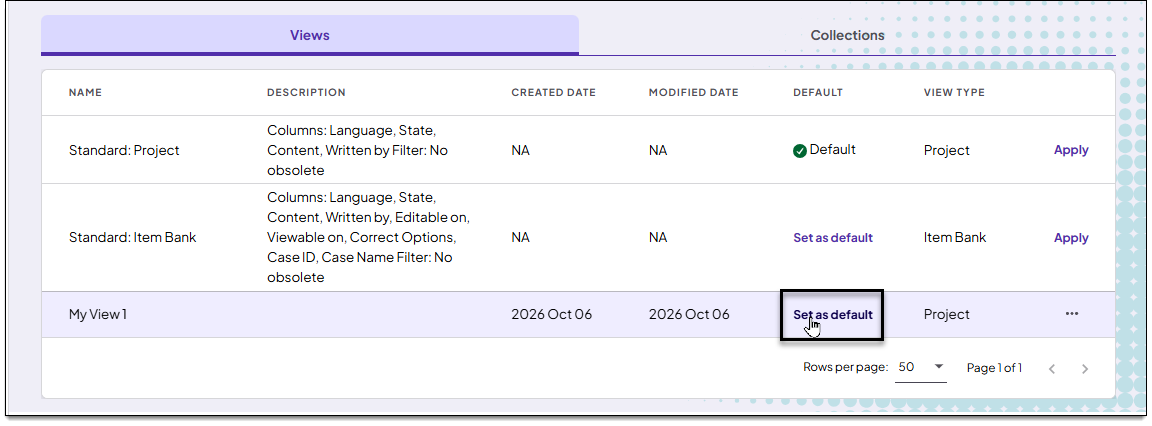
- The view is now shown as the default in the Views list. It will be shown by default the next time you log in to or refresh the Search page.
Edit a view
|
|
 You cannot edit the
- Find the desired view in the Views list.
- Click the for that view and select Edit.
- The Edit view page will reload with the selected view applied. You can now make changes to the view.
- Click Save.
Delete a view
- Find the desired view in the Manage all views list.
- Click the for that view and select Delete.
- Click Yes in the confirmation window.
- The view is removed from the list.
Add a new view
- On the Manage views and collections page, click Add > New View in the upper-right corner.
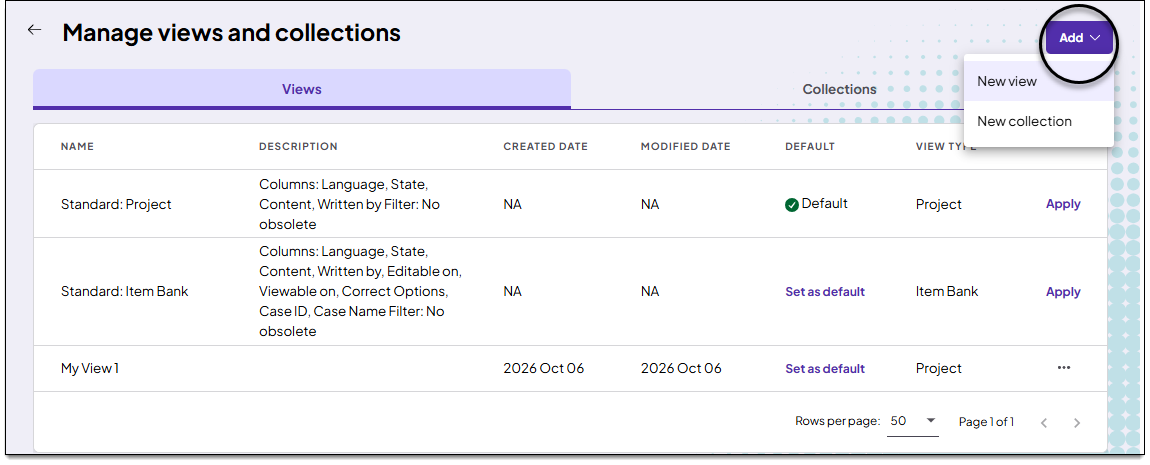
- Follow these steps to add a new view.